Cyber Security Awareness Guide
Home > Cyber Security Awareness Guide
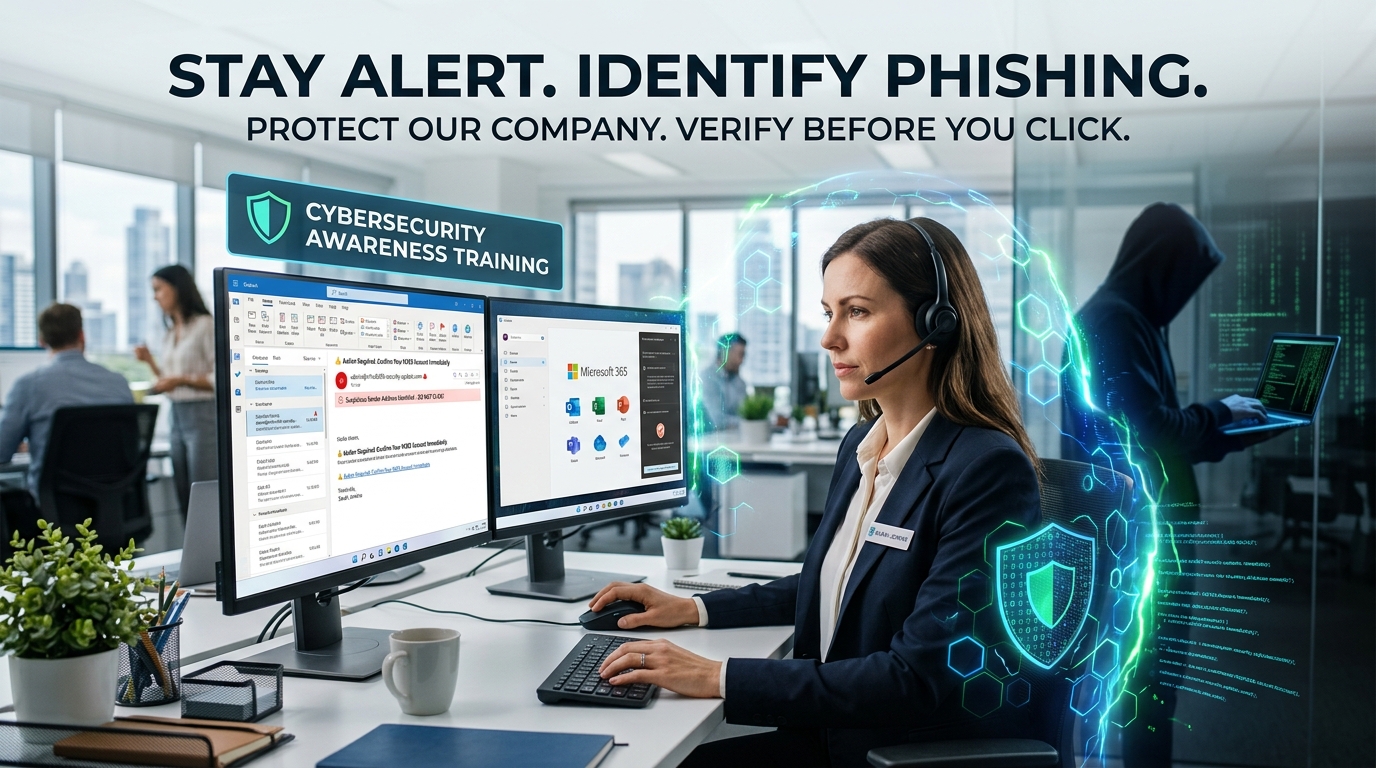
Cyber Security Awareness:
How to Identify and Prevent Phishing Emails and Fake Websites
Introduction
Cybersecurity threats continue to evolve, and phishing remains one of the most common and successful attack methods used by cybercriminals worldwide. Every day, attackers send millions of fraudulent emails designed to trick users into revealing passwords, financial information, and sensitive business data.
Whether you are working in an office, remotely, or accessing company systems from your mobile device, understanding how phishing works is essential to protecting yourself and your organization.
In this article, we’ll explore what phishing is, how attackers use phishing emails and fake websites, and practical steps every user can take to identify and prevent these attacks.
What is Phishing?
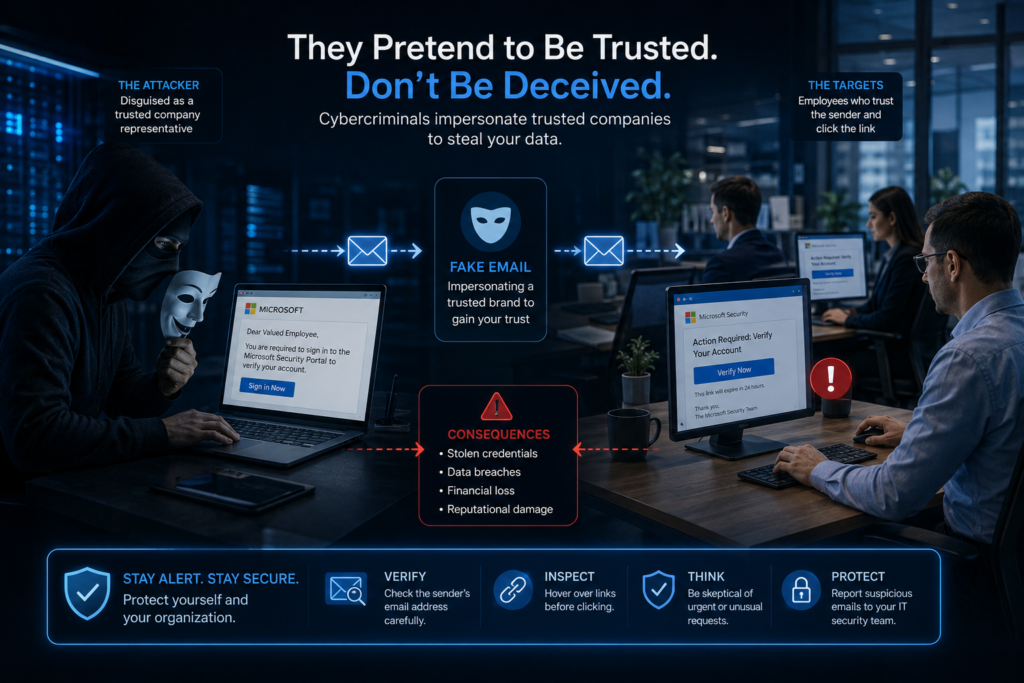
Phishing is a type of cyberattack in which criminals impersonate trusted organizations, brands, or individuals to deceive users into providing confidential information.
The goal of phishing attacks is often to:
Steal usernames and passwords
Gain access to business systems
Obtain financial information
Install malware on devices
Compromise company email accounts
Attackers frequently impersonate:
Microsoft 365
Banks and financial institutions
Shipping companies
Government agencies
Company executives
Internal IT departments
How Phishing Attacks Work
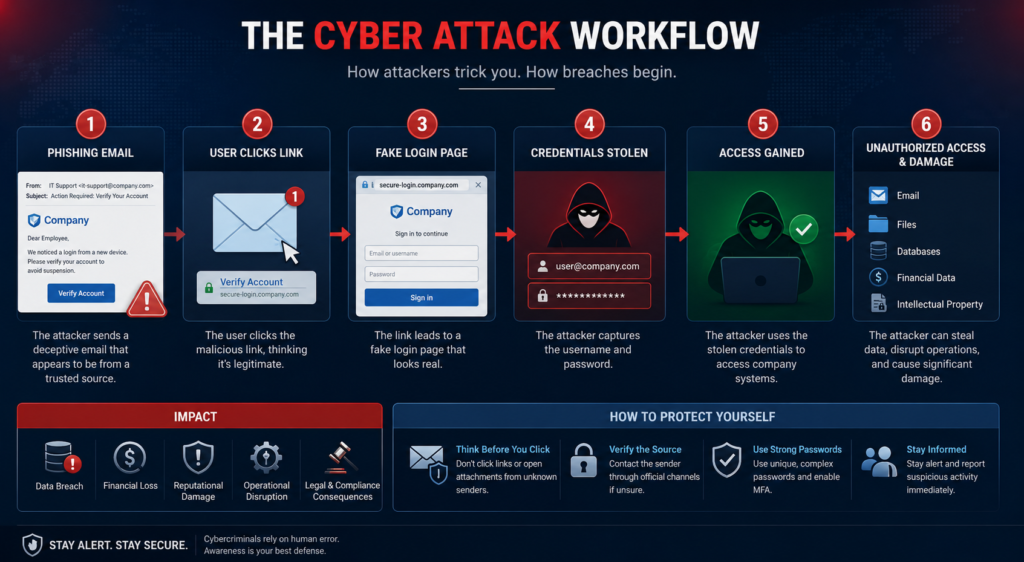
A phishing attack typically follows a simple process:
Step 1: The Attacker Creates a Fake Email
The attacker designs an email that appears legitimate and trustworthy.
Examples include:
- Password expiration notices
- Account verification requests
- Invoice notifications
- Package delivery alerts
Step 2: The Victim Clicks a Link
The email contains a malicious link directing the user to a fake website.
Step 3: Credentials Are Stolen
The victim enters their username and password.
Step 4: Account Compromise
The attacker gains access to:
- Email accounts
- Company systems
- Cloud applications
- Sensitive business data
Common Types of Phishing Emails
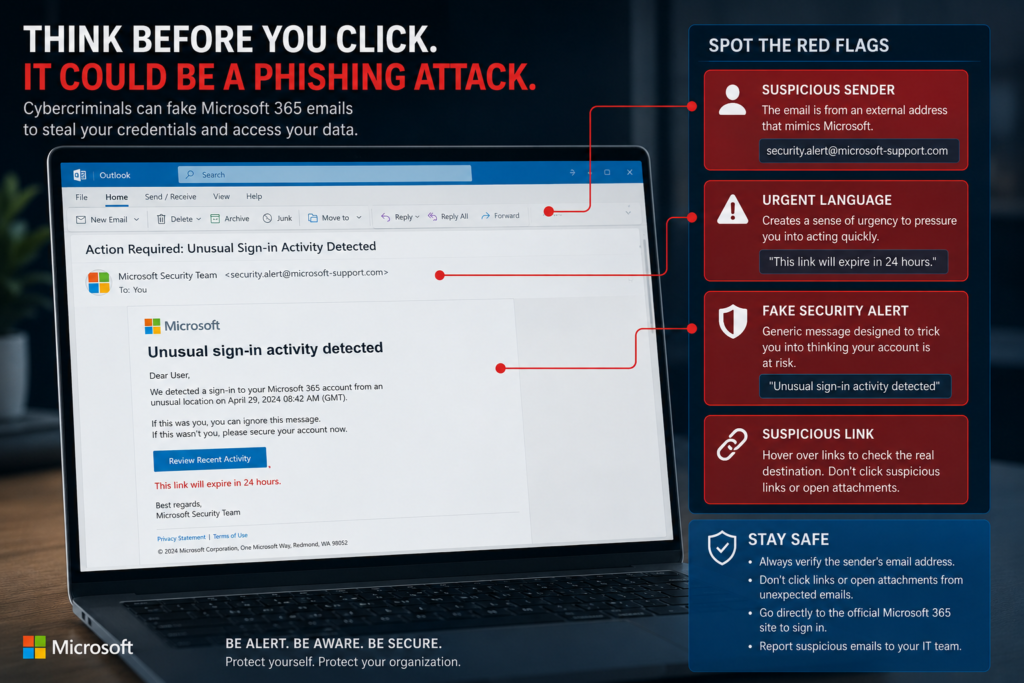
Fake Microsoft 365 Security Alerts
These emails often claim:
- Your mailbox is full
- Your password has expired
- Your account will be suspended
- Unusual login activity detected
The email encourages immediate action.
Warning Signs
- Urgent language
- Suspicious links
- Unknown sender addresses
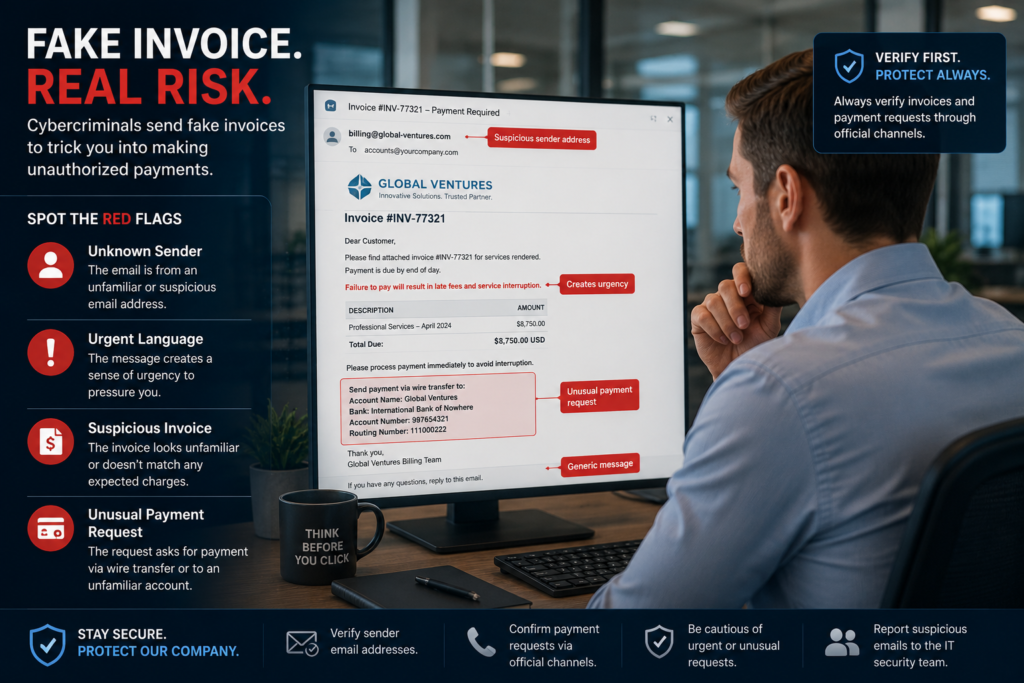
Invoice and Payment Scams
Attackers often send fake invoices to employees in finance, purchasing, or management roles.
Examples:
- Unpaid invoice notices
- Payment requests
- Purchase order updates
Warning Signs
- Unexpected invoices
- Unknown vendors
- Requests for immediate payment
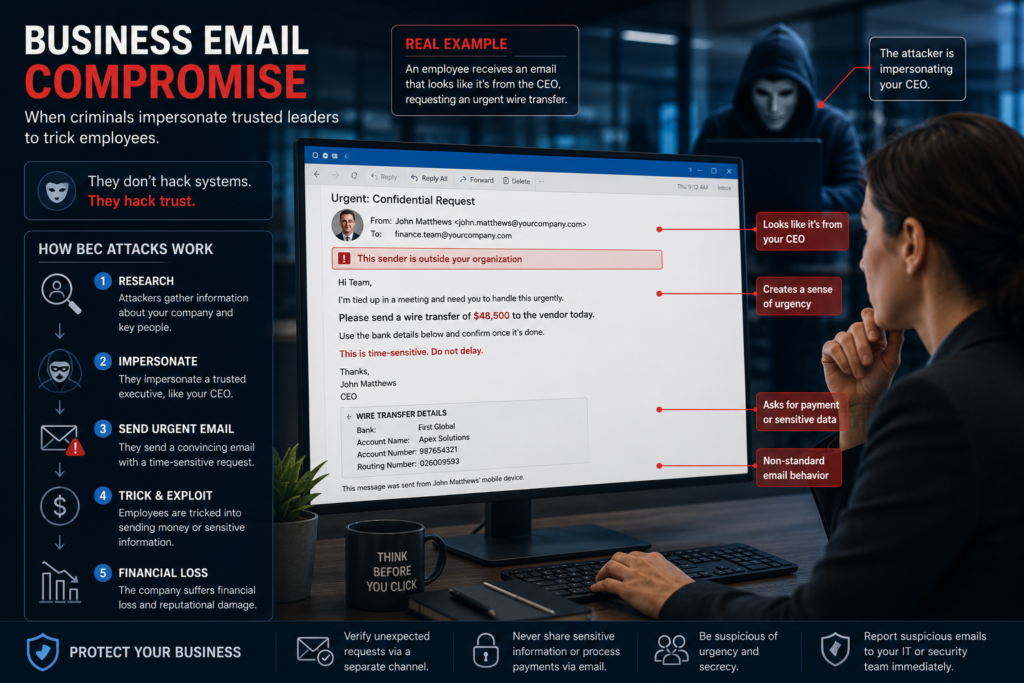
Executive Impersonation
Also known as Business Email Compromise (BEC).
The attacker pretends to be:
- CEO
- CFO
- Director
- Manager
Requesting:
- Wire transfers
- Gift card purchases
- Sensitive company information
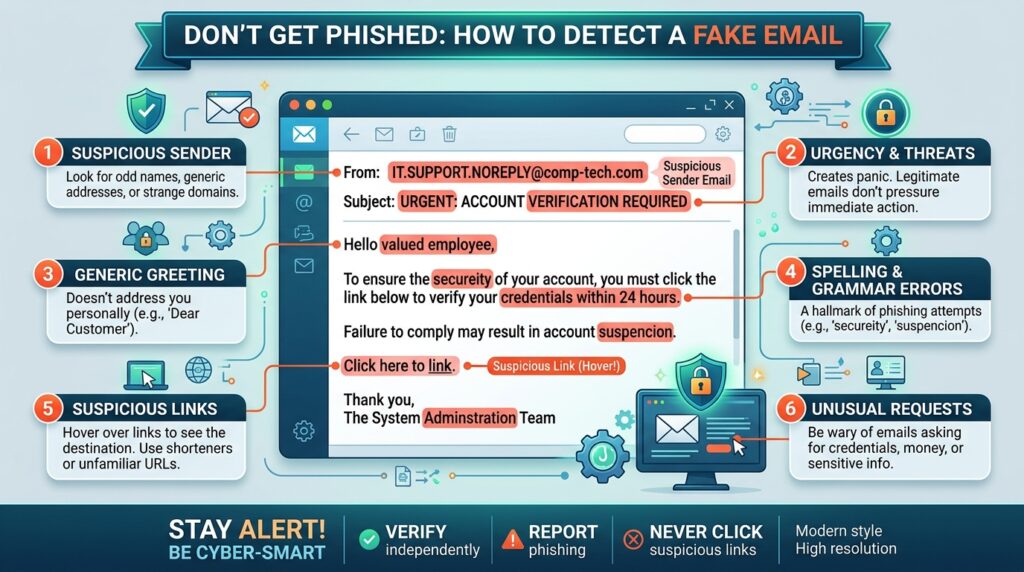
How to Identify a Phishing Email
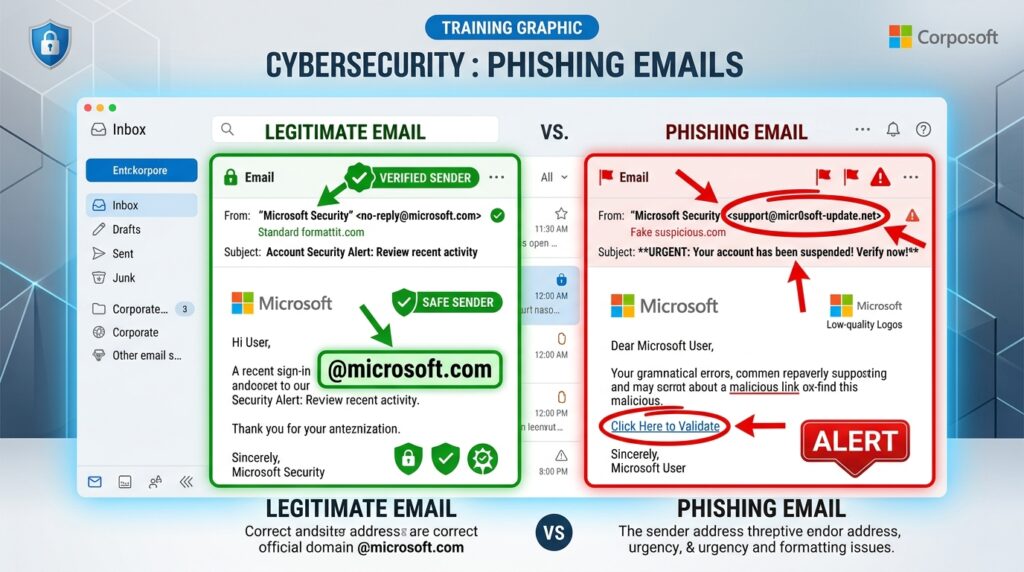
Check the Sender Address
Always inspect the sender’s email address carefully.
Example:
Legitimate:
support@company.com
Suspicious:
support-company@gmail.com
or
support@micr0soft-security.com
What to Look For
- Misspelled company names
- Extra characters
- Public email providers
Hover Over Links Before Clicking
Never click immediately.
Move your mouse pointer over the link to reveal its actual destination.
Example:
Displayed:
portal.office.com
Actual Destination:
security-verification-login.net
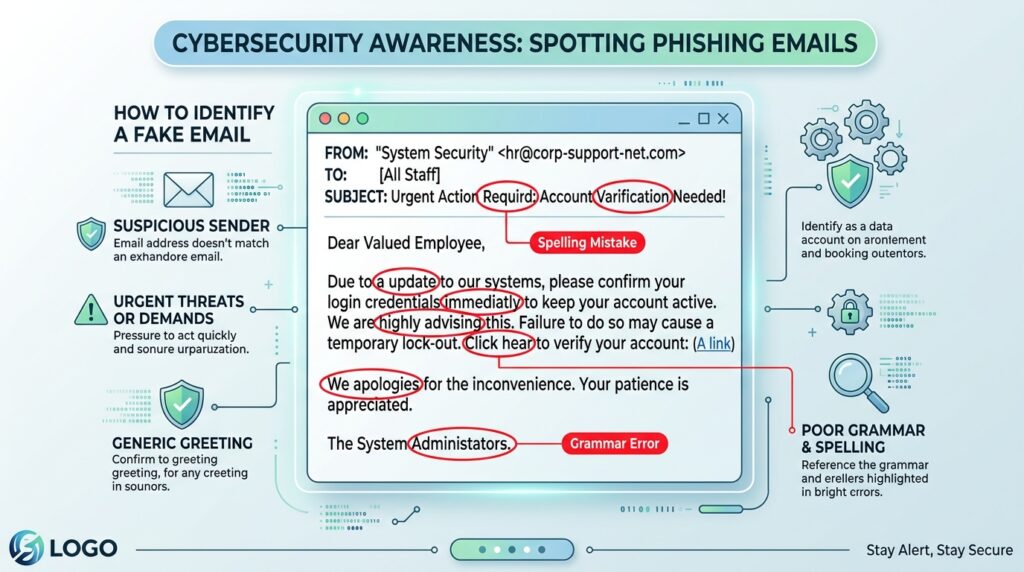
Look for Poor Grammar and Spelling
Many phishing emails contain:
- Misspellings
- Poor grammar
- Awkward wording
- Inconsistent branding
Although attackers are becoming more sophisticated, mistakes still occur frequently.
How to Identify Fake Websites
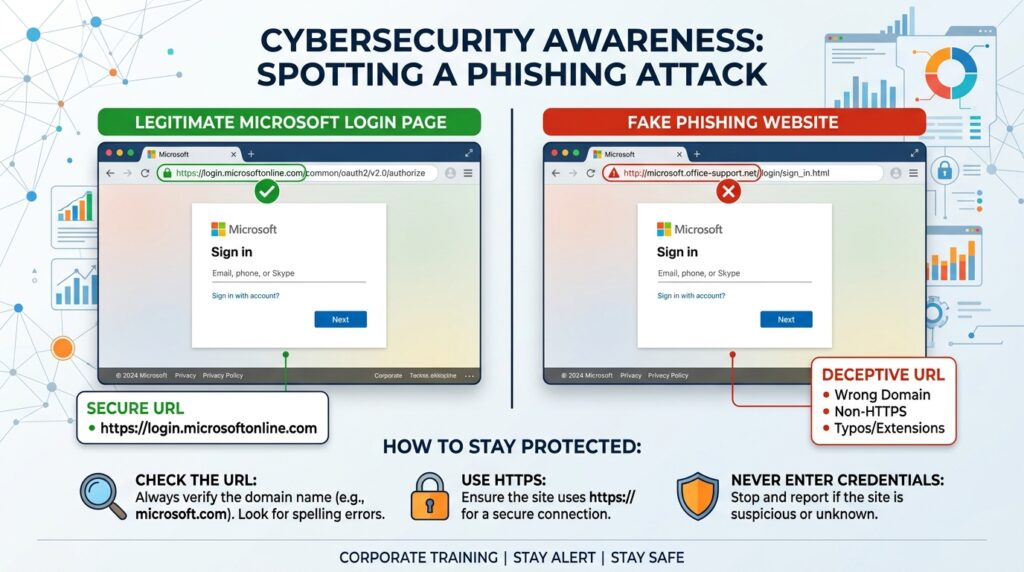
A fake website is designed to look identical to a legitimate website.
Users are tricked into entering:
- Usernames
- Passwords
- Credit card information
- Personal details
Verify the Website Address
Always check the URL before logging in.
Legitimate:
https://login.microsoftonline.com
Fake:
https://microsoft365-security-login.com
Red Flags
- Extra words
- Misspellings
- Unusual domain names
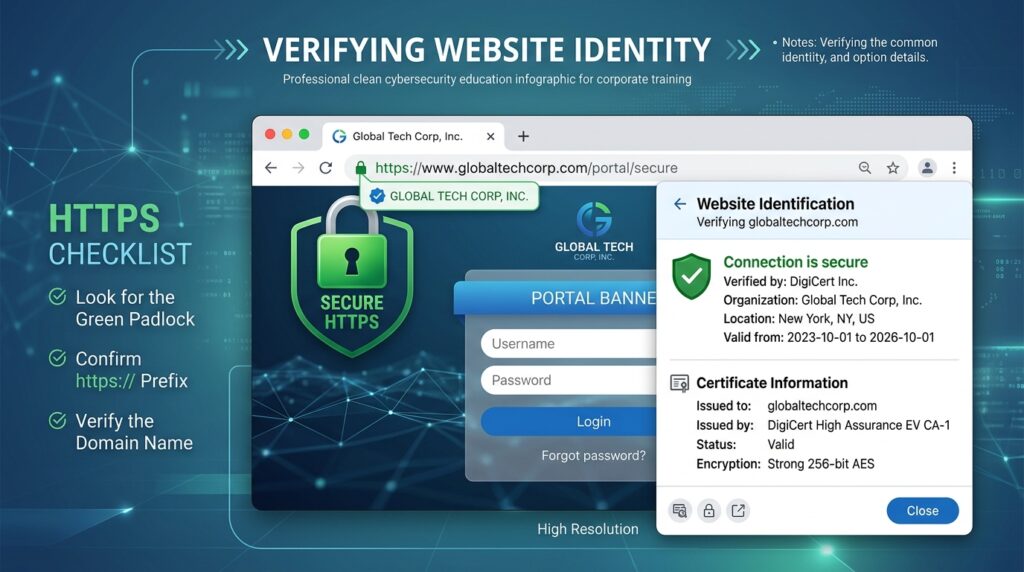
Check for HTTPS and Domain Name
HTTPS alone does not guarantee a website is safe.
Always verify:
- The lock icon
- The full domain name
Attackers can also obtain HTTPS certificates.
How to Protect Yourself
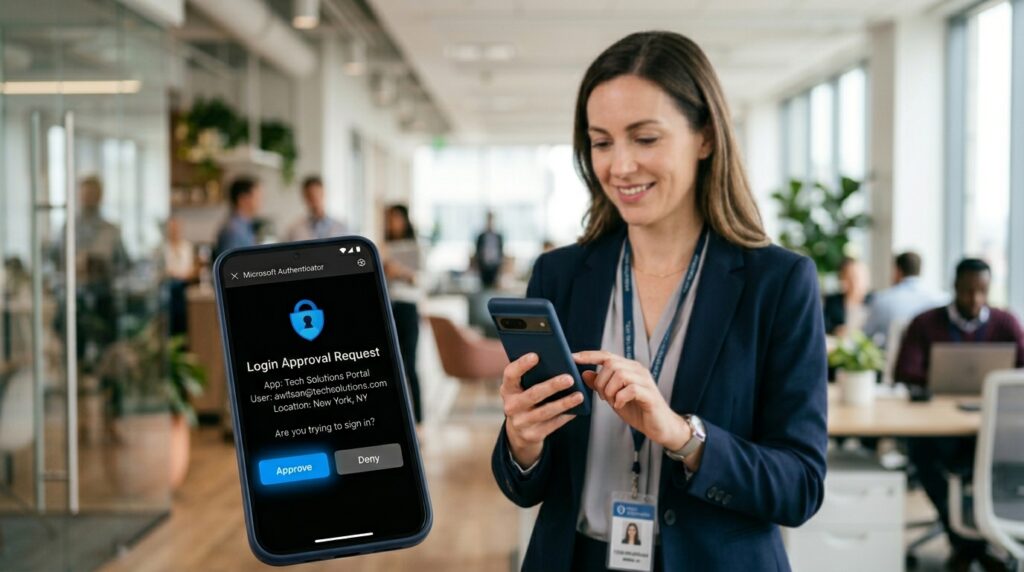
Use Multi-Factor Authentication (MFA)
MFA adds an additional layer of security.
Even if attackers steal your password, they cannot access your account without your second authentication factor.
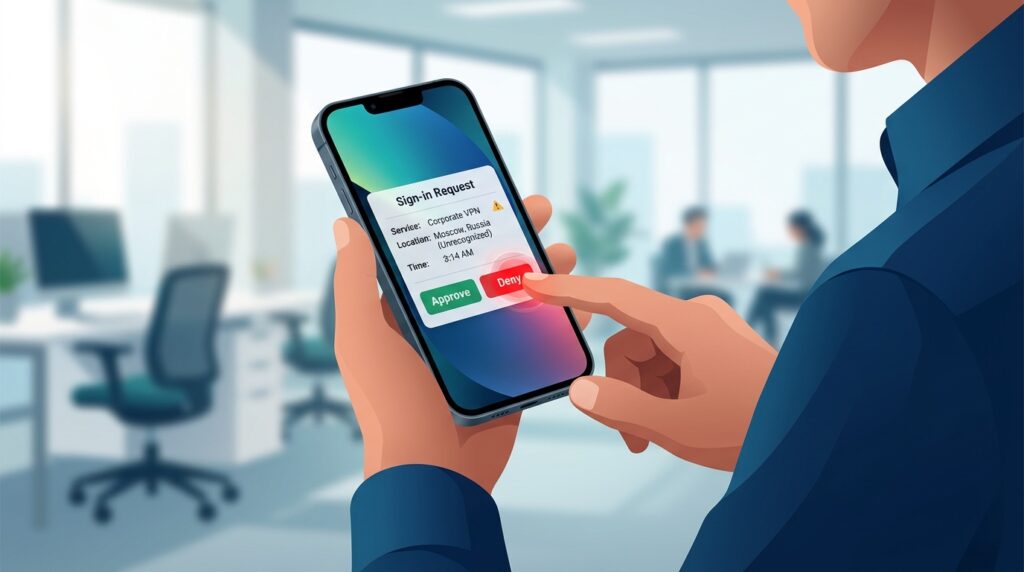
Never Approve Unexpected MFA Requests
If you receive an authentication request that you did not initiate:
- Deny the request
- Change your password immediately
- Contact IT
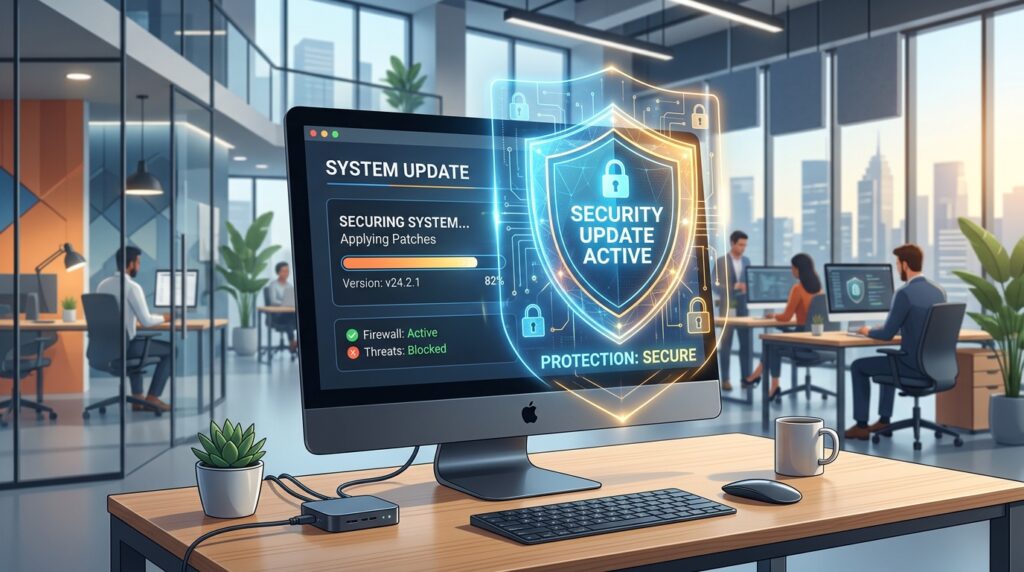
Keep Software Updated
Regular updates help protect against:
- Malware
- Ransomware
- Exploits
Enable automatic updates whenever possible.
What To Do If You Suspect a Phishing Attempt
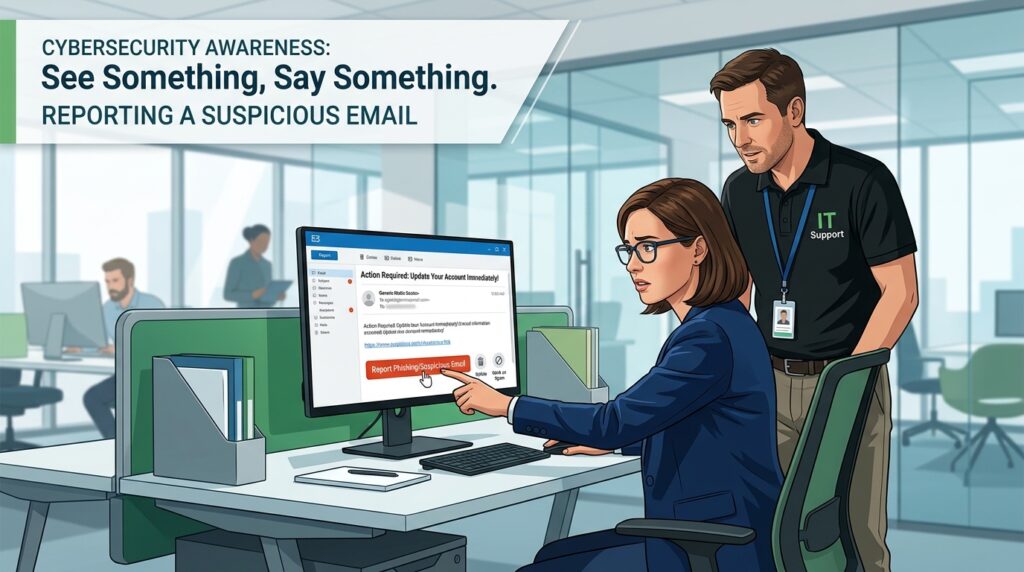
If you receive a suspicious email:
Do Not
❌ Click links
❌ Open attachments
❌ Enter credentials
❌ Reply to the sender
Do
✅ Report it to IT
✅ Delete the message
✅ Verify requests through another communication channel
Final Thoughts
Phishing attacks succeed because they target human behavior rather than technology. Cybercriminals rely on urgency, fear, curiosity, and trust to manipulate users into making mistakes.
By taking a few extra seconds to verify an email, inspect a link, or confirm a website’s authenticity, you can help protect yourself, your colleagues, and your organization from costly security incidents.
Remember:
STOP • LOOK • VERIFY
Think before you click.
When in doubt, contact your IT Department.
News
Check The New Articles
Cyber Security Awareness Guide Home > Cyber Security Awareness Guide Cyber Security Awareness: How to Identify and Prevent Phishing Emails and Fake Websites Introduction Cybersecurity threats continue to evolve, and phishing remains one of the…
Setting Up & Securing Your Microsoft 365 Account Home > Setting Up & Securing Your Microsoft 365 Account A complete, user-friendly step-by-step guide you can give to your employees. It’s written for non-technical users 1.…