1. Initial Setup + Requirements
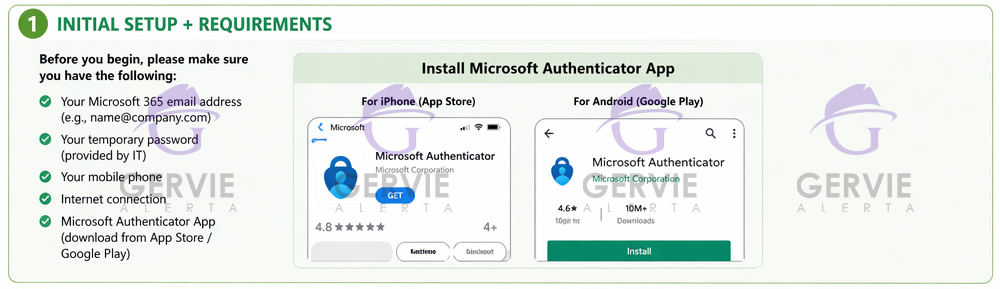
Before you begin, make sure you have:
 Your Microsoft 365 email address (e.g., name@company.com)
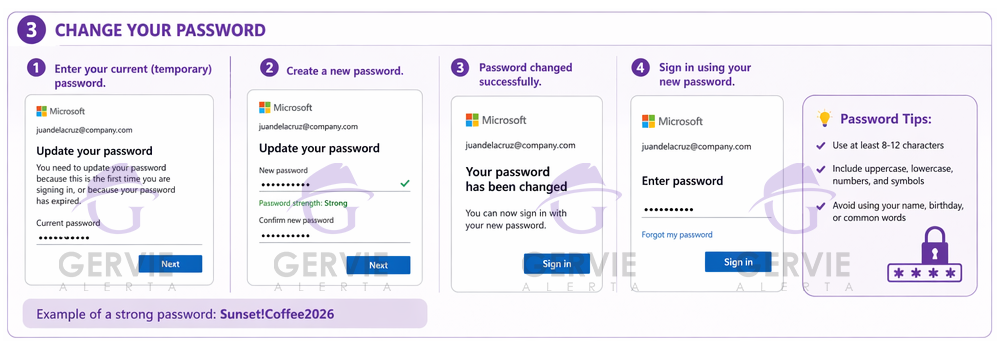
- Your temporary password (provided by IT)
- Your mobile phone (for security setup)
- Internet connection
 You will also need to install:
- Microsoft Authenticator (recommended for security)
 4. Multi-Factor Authentication (MFA) Setup
This step protects your account even if someone knows your password.
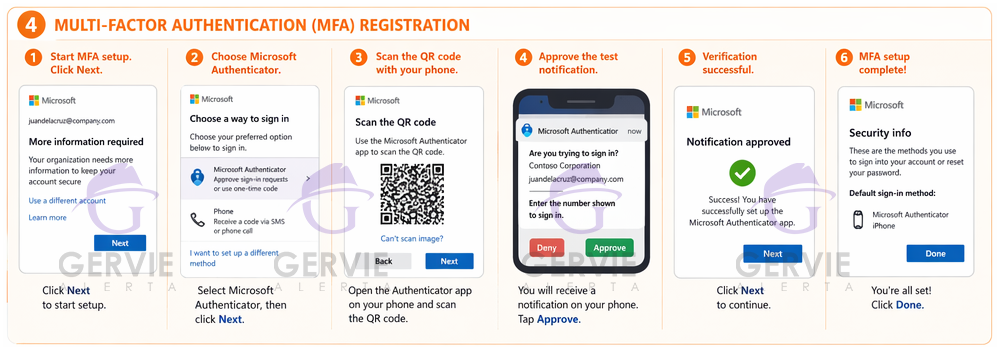
 Step 4.1: Start MFA Setup
- Click Next when prompted
 Step 4.2: Install Authenticator App
On your phone:
- Open App Store / Google Play
- Install Microsoft Authenticator
 Step 4.3: Connect Your Account
On your computer:
- A QR Code will appear
On your phone:
- Open the Authenticator app
- Tap + Add Account
- Select Work or School Account
- Tap Scan QR Code
- Scan the QR code from your computer
Step 4.4: Verify Login
- You will receive a notification on your phone
- Tap Approve
 Step 4.5: Verification Successful
- Success! You have successfully set up the Microsoft Authenticator app.
Step 4.6: MFA setup complete!
- Success! You have successfully set up the Microsoft Authenticator app.
- ✔ Setup complete!
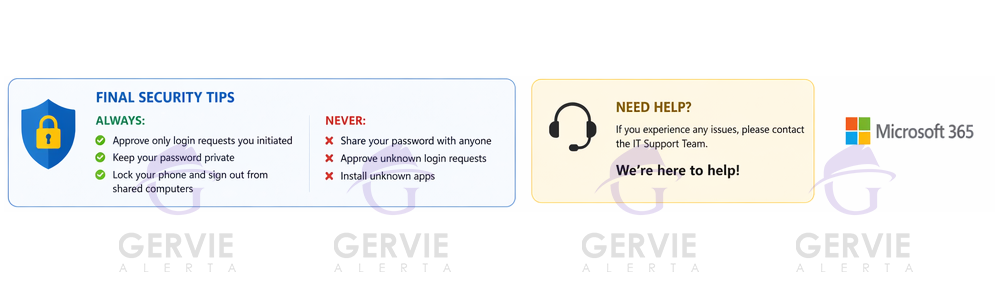
Final Security Tips
To keep your account safe:
Always:
- Approve only login requests YOU initiated
- Lock your phone
- Sign out from shared computers
 Never:
- Share your password
- Approve unknown login requests
- Install unknown apps